
Automated business text messaging should send a useful update when a customer’s situation changes, without requiring employees to compose every message. Start with one event, such as a confirmed appointment, connect it to the current customer record, and define when the message should stop. A reminder is successful when it helps the customer act on accurate information.
For a first rollout, use a booking confirmation followed by one reminder. Decide who handles replies before switching on automatic sends. The workflow below is a recommended setup specification, not a set of menus shared by every messaging platform.
Connect the appointment event to the right sender
Carolina Digital Phone provides Texting Ninja Messaging for SMS reminders, alerts, confirmations, and marketing campaigns, including bulk messaging (business messaging overview). For an appointment workflow, ask for a demonstration connecting your actual scheduling system to the proposed texting service. Make that connection part of the project scope rather than assuming that bulk sending creates event-based automation.
Choose the system that owns the appointment as the source of truth. Record a customer identifier, mobile number, appointment identifier, start time, time zone, location, and current booking status. Assign a distinct event identifier to each booking change so your workflow can recognize an event it has already processed.
Specify these starting rules for the person configuring the automation:
- Trigger: appointment status changes to confirmed.
- Eligibility: a usable mobile number and recorded permission for appointment updates.
- First action: send the booking confirmation once.
- Reminder: queue one message 24 hours before the appointment.
- Suppression: skip canceled appointments and reminders whose scheduled time has passed.
Use immediate status changes for order-ready notices or service delays. Use scheduled reminders for events with a known future time. Keep promotional offers in a separate workflow so an operational update does not unexpectedly become an advertisement.
Record permission before enrolling customers
Build enrollment around the messages the customer agreed to receive. Keep the permission text, collection method, timestamp, number, and message category together. Do not treat an existing customer record as permission for every kind of text. Twilio requires prior express consent under its messaging policy, with additional requirements for promotional messages and a straightforward withdrawal process.
For US application-to-person messaging through local 10-digit numbers, prepare brand and campaign registration alongside enrollment. Use the SMS registration guide to understand the business identity and campaign information needed before launch. Registration and customer permission serve different purposes; include both in the setup checklist.
Place opt-out handling in one shared suppression process used by every workflow. Include your sender identity and the appropriate unsubscribe instructions in approved templates. Have the implementation team show what happens when permission changes while messages are queued, rather than testing only new subscriptions.
Schedule reminders using the customer’s time zone
Set a recommended service-update window of 9 a.m. to 6 p.m. in the customer’s local time, then adapt it to your business and applicable requirements. Store the time zone explicitly instead of deriving it only from a phone number. For a reminder that falls outside the chosen window, define whether to move it to the preceding afternoon or skip it.
For example, an appointment at 8 a.m. Tuesday would produce an 8 a.m. Monday reminder under a strict 24-hour rule. Under the proposed window, move that reminder to 6 p.m. Sunday only if that timing is useful for your customers. Otherwise, choose a different reminder offset. Write down the rule so staff can explain when customers receive updates.
An API implementation offers a concrete example: Twilio schedules messages with ScheduleType set to fixed, a SendAt timestamp, and a MessagingServiceSid. Its scheduling range is 15 minutes to 35 days ahead. Save the returned message identifier so you can cancel a queued send (message scheduling documentation). These are Twilio settings, not Carolina Digital Phone configuration instructions.
For bookings farther ahead, keep the reminder in your scheduling system until it enters the messaging service’s supported scheduling window. Ask the implementer to demonstrate the time-zone conversion with two customers in different zones.
Replace stale reminders when bookings change
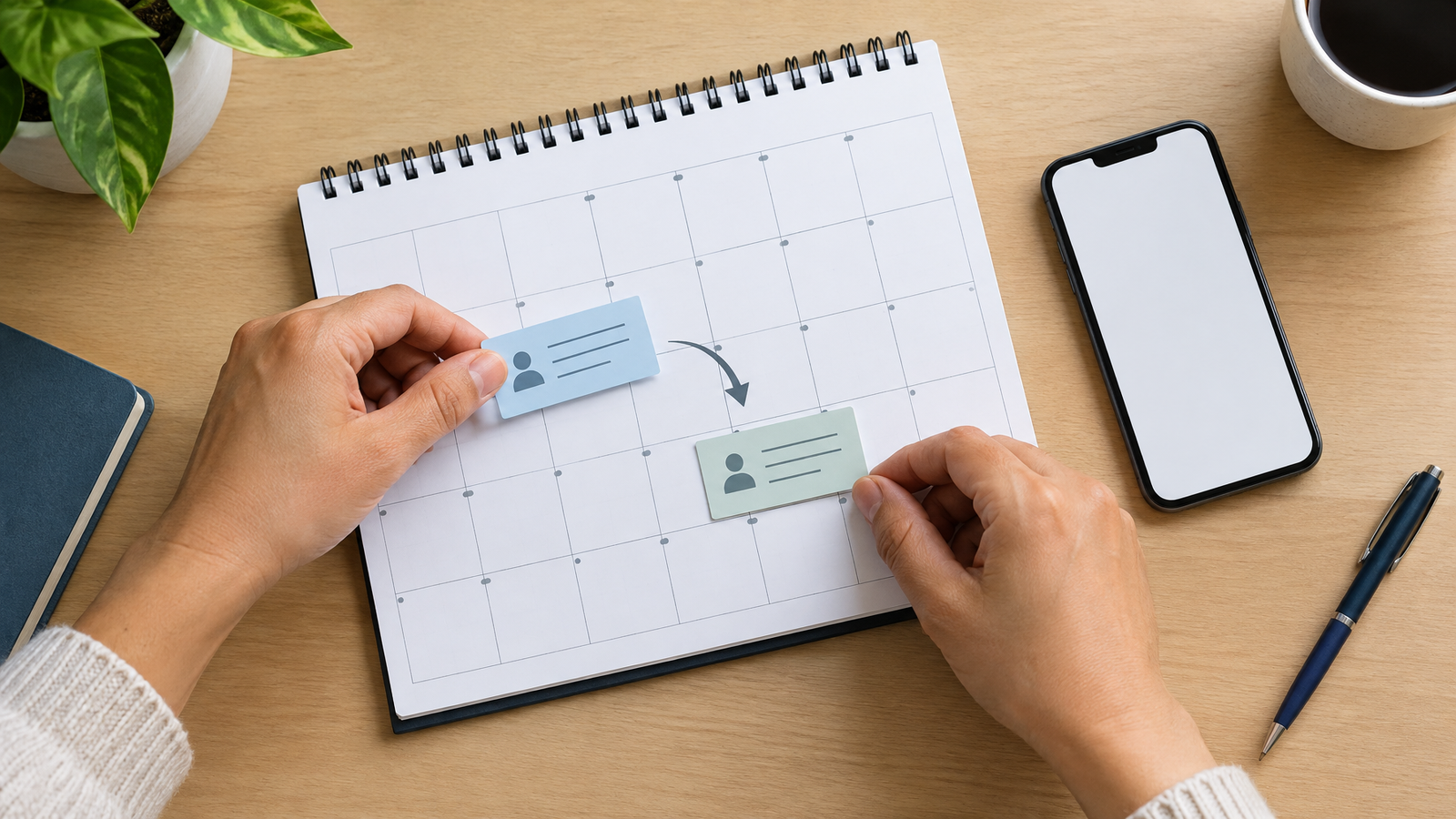
Treat a reschedule as a replacement, not an additional reminder. Recommended behavior is to cancel the pending message, update the appointment record, send a revised confirmation, and schedule a reminder for the new time. A cancellation should remove the pending reminder altogether.
Run the same cancellation logic when the customer withdraws permission. Twilio does not automatically cancel previously scheduled messages after an opt-out; those messages fail at send time. Its API allows cancellation by updating the message status to canceled. Clear the queue deliberately so your internal records also reflect the change.
Prevent duplicate confirmations by saving the processed event identifier before retrying a workflow. Test a repeated booking event and an appointment changed twice in quick succession. Require one confirmation for the final valid change, rather than accepting duplicate messages as harmless.
Write texts that lead to one clear action
Use a short template containing the business name, relevant event, date or timing, and one next step. Here is an illustrative appointment message: “Oak Street Service: Your appointment is Tuesday at 2 p.m. at our Main Street location. Reply CHANGE if you need another time. Reply STOP to unsubscribe.”
Define what happens to CHANGE before including it. If staff handle rescheduling, route that reply to the appointment team and keep it open until someone responds. Do not automatically confirm a new slot unless the scheduling system has actually reserved it.
Carolina Digital Phone supports sending and receiving texts from a business number through its mobile application on Android and Apple devices (business phone app). When planning employee replies, demonstrate the receiving number, device, and conversation workflow that will be used in production. Assign a primary responder and a backup for each business day. If customers also call to change appointments, use our AI receptionist comparison to explore call handling and human handoff options alongside the texting workflow.
Test changed appointments and delivery failures
Pilot the workflow with staff numbers before enrolling customers. Test a normal booking, a reschedule, a cancellation, an opt-out, a missing time zone, a duplicated event, and an unanswered customer reply. For each test, record the expected message, actual send time, queue state, and responsible employee.
Track delivery separately from the customer’s action. Twilio provides outbound status callbacks for message transitions, including delivered and undelivered states. Use those events to create a review list for failed updates; measure confirmations or completed reschedules separately rather than treating delivery as proof of success.
Estimate workload using appointments and planned updates, then ask Carolina Digital Phone to quote the messaging service and the requested automation connection separately. Keep one person responsible for failed-message review during the pilot.
For a hypothetical month with 180 appointments and 2 planned texts per appointment, 180 × 2 = 360 outbound messages. If 15 appointments each need 1 revised confirmation, 360 + 15 = 375 messages before replies. At an illustrative rate of $0.02 per outbound message, 375 × $0.02 = $7.50 for that component alone, excluding subscription, registration, carrier charges, and any segment-based billing. This is a planning example, not a Carolina Digital Phone price.
Begin with the confirmation and reminder workflow, expand only after changes and replies work correctly, and bring your scheduling system, expected volume, and sample messages to the business messaging quote form.
Frequently Asked Questions
Should automated texts include a link or ask for a reply?
Use a link when customers can complete the action themselves, such as reviewing appointment details. Ask for a reply when an employee needs to resolve the request. Choose one primary action per message, and test it on a mobile phone before approving the template.
Can several branches use the same automated texting workflow?
Use a shared template with branch-specific location, time zone, contact details, and reply ownership. Keep a branch identifier in the appointment record. Test that a customer booked at one location does not receive another branch’s address or send a rescheduling request to the wrong team.
What should an automatic reply outside business hours contain?
Identify the business, confirm receipt, and give a specific response expectation, such as the next business morning. Include a staffed contact method only if someone actually monitors it. Avoid promising an immediate resolution when the reply queue will not be reviewed until staff return.