Email to fax lets you attach a document to an email and send it through a fax service to the recipient’s fax number. You need access to a fax-enabled service, not just an ordinary inbox. To fax from a phone, prepare the document as a file, then use the service’s email gateway or sending portal (Internet fax explanation).
Set up email to fax before composing your message
When choosing a fax service, confirm whether your account includes sending through a web portal, email, or both. Incoming faxes convert to PDF attachments with email notification. This gives an office a way to exchange documents without making every employee use a physical fax machine.
Before your first transmission, gather the recipient’s confirmed fax number, the document, your service’s email gateway address, and access to the sending account. Ask your administrator which sender address to use, including whether a shared mailbox or alias needs separate authorization. Keep those details together so employees do not improvise the address each time.
Confirm the receiving office’s fax number directly before your first transmission. Ask which department should receive the document and whether a named employee needs to be identified on the cover page.
Send email to fax with the correct address and attachment
Use this sequence for a routine document. Keep your provider’s instructions nearby because number formatting and cover-page behavior are service-specific.
- Choose the sending account. Open a new message from the address configured for your fax service. On a phone, check the From field before attaching anything, especially if personal and work accounts share one mail app.
- Enter the gateway destination. The structure is the recipient’s fax number, followed by the at sign and your provider’s fax domain. Carolina Digital Phone uses the pattern
FAXNUMBER@fax.digitalfax.iofor its documented email method. - Apply the service’s dialing format. Confirm whether to include the country code and whether the gateway accepts a plus sign. Do not assume that a familiar local dialing format works for international destinations.
- Attach the document itself. Open the attachment before sending. Prefer one clearly ordered PDF for a multipage packet, and check that signatures, dates, and page edges remain visible. Do not substitute a cloud-sharing link unless your service explicitly supports fetching it.
- Check the cover-page settings. Confirm whether the subject or message body becomes fax content. Remove an automatic email signature if you do not intend to include it, and avoid forwarding an entire email thread.
- Send once and inspect the result. Record the destination and submission time. Check the fax service’s transmission history or notification before deciding whether another attempt is necessary.
For address orientation, a fictional US number such as (336) 555-0123 contains a three-digit area code and seven local digits. If your gateway requires country code 1, the numeric portion would be 13365550123. This illustrates the number component only, not a tested sending address. Copy the gateway domain from your own account instructions rather than borrowing another provider’s domain.
Scan a readable document before you fax from a phone
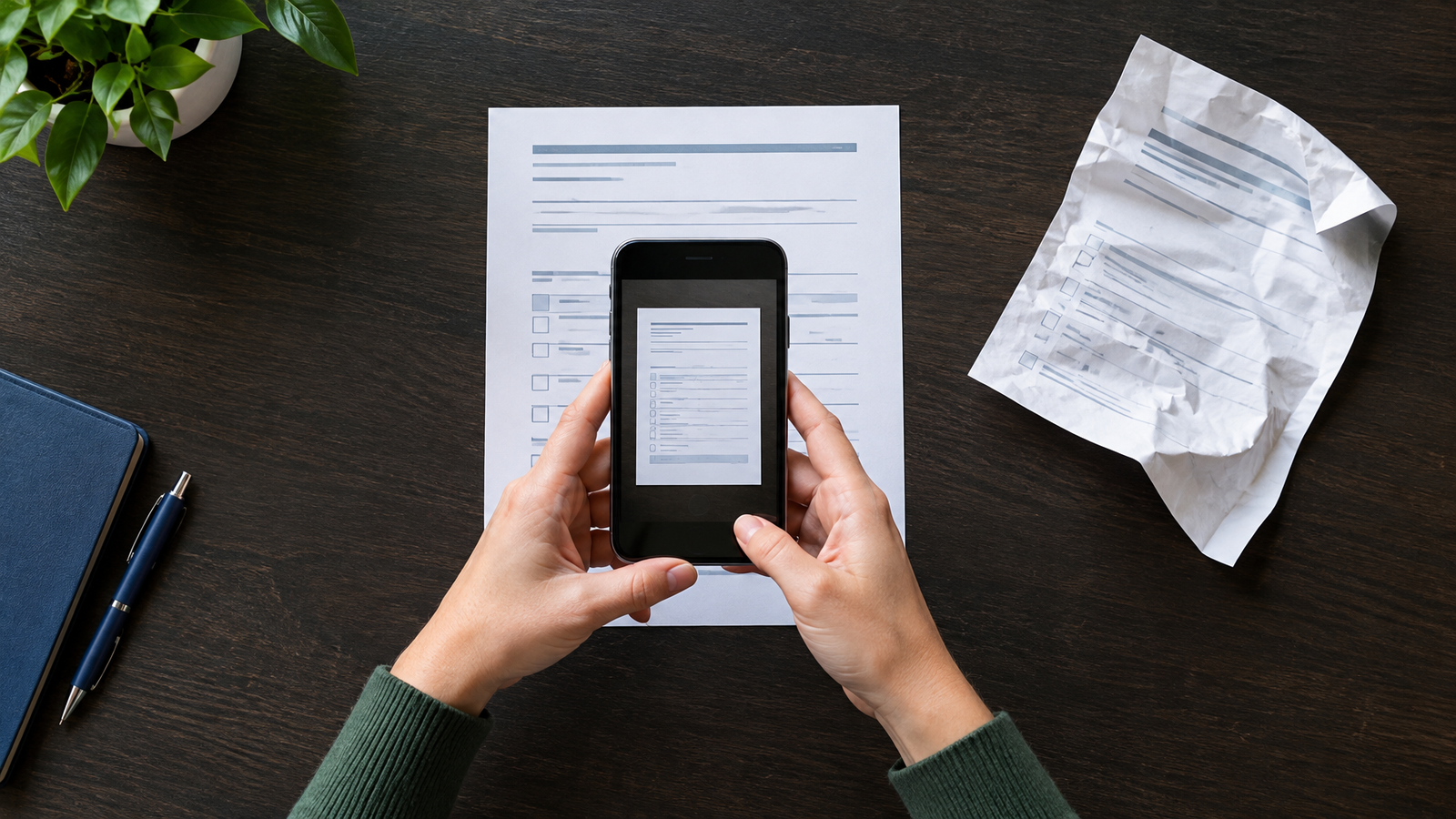
For an iPhone, open Notes, create or select a note, tap the Attachment button, and choose Scan Documents. Capture each page, adjust the corners if needed, and tap Done. Apple also supports scanning in Files through More, Scan Documents, then saving the result to a chosen location (iPhone scanning instructions).
On Android, open Google Drive and tap the Camera button. Capture the page, crop or adjust it, add further pages with Add, and tap Done. Choose PDF, give the file a recognizable name, select its folder, and save it (Android scanning instructions).
Before attaching the scan, inspect small print at a comfortable reading size. Retake pages with shadows across text, missing corners, or blurred signatures. Check page order and remove blank backs. Treat this as a document check: a successfully transmitted unreadable scan still leaves the recipient unable to complete the task.
Once saved, attach the file in your configured email account and follow the sending sequence above. For broader planning around employees working away from their desks, our mobile productivity guide offers related reading. Keep the fax document check separate from any decisions about mobile calling.
For an illustrative packet containing 4 form pages, 2 supporting pages, and 1 cover page, calculate 4 + 2 + 1 = 7 transmitted pages. If your saved attachment contains the 6 document pages and the service adds the cover separately, inspect both components so the intended result remains a complete 7-page packet.
Use the portal when you want a dedicated fax screen
Carolina Digital Phone provides a Manager Portal workflow: select Fax, then Send Fax, use Browse to select a document, enter the destination number, optionally select Add Cover Letter, and choose Send. Supported uploads include PDF, DOC, DOCX, JPG, TIF, ODT, TXT, and HTML files (portal fax walkthrough).
Try that route when your team prefers a dedicated destination field and cover-letter control instead of constructing an email address. For either method, use a harmless sample document for the first test and ask the receiving office to check the result. If fax is part of a larger communications change, our cloud phone cost guide helps frame the broader budget without replacing the fax test.
Check email to fax results before retrying
After submitting your email, check the fax service’s final transmission status rather than relying on your email’s Sent folder. Use this troubleshooting order rather than repeatedly pressing Send.
- Attachment rejected: Compare its format and size with your service’s requirements. Export a fresh supported file and inspect it before resubmitting.
- Sender rejected: Check the From address against the account configuration. Ask the administrator to enable the intended sender rather than borrowing a colleague’s credentials.
- Number rejected: Recheck the actual destination and the gateway’s country-code and punctuation rules.
- Busy or failed transmission: Read the final status and any retry information. Wait for pending attempts to finish before creating another job.
- No confirmation email: Check spam and the account’s transmission history before assuming failure.
A successful transmission report should not be treated as proof that a particular employee read or acted on the document. For a deadline-sensitive packet, ask the recipient to confirm legibility and page count, then retain the transmission record with your working copy.
Keep incoming documents with the people responsible
Assign someone to check incoming faxes and arrange coverage for absences. Decide where completed documents belong and who removes temporary downloads from shared devices. For patient information, follow your organization’s approved safeguards; HHS specifically identifies confirming an unfamiliar fax number with the recipient as a reasonable precaution (health information fax guidance).
For a business setup that supports both sending and receiving, review the fax service options with your expected users and existing document workflow in mind.
Frequently Asked Questions
Can I use email to fax for free?
Check whether a free allowance specifically includes sending through email, rather than only uploading through a website. Also check whether it includes receiving, requires payment details, or converts to a paid subscription. Do not assume a free scanning tool includes fax transmission.
Does scanning a document on my phone send it as a fax?
No. Scanning creates the file; fax transmission is a separate step. Save and inspect the document, then submit it through your configured fax service.
How should I count a cover page when planning fax volume?
Include the cover page in your planning count unless your service’s billing rules explicitly exclude it. Also distinguish a count of pages from a count of separate transmissions, since those are different measures of usage.