
Browser calling lets you use a computer for conversations, but reaching a landline or cell phone requires a service that connects to telephone numbers. Start with your calling account, a supported browser, and a microphone or headset. Then test outgoing calls, incoming calls, and team coverage before relying on the setup for customers.
Choose the browser calling path your work needs
A webphone, also called a browser-based softphone, puts telephone controls in a webpage. Browser-to-browser conversations instead connect people through an internet application. WebRTC supports real-time audio and video in browsers without plug-ins, but that technology alone does not supply a telephone number or calling plan (WebRTC API overview).
Choose by the conversation you need to complete:
- Calling landlines or cell phones: Ask for telephone-network calling, the destinations you need, and the outbound identity recipients should see.
- Receiving customer calls: Specify an incoming US number, the employees who answer it, and the destination when nobody answers.
- Talking with another application user: Decide whether both people joining the same service meets the need.
Do not treat a click-to-call extension as proof that audio runs in the browser. Ask which device handles the conversation. For staff dialing numbers found on webpages, the browser extension guide offers related reading on dialing shortcuts; keep that workflow separate from choosing a microphone.
When comparing internet-calling apps with a no-download webphone, prioritize where employees work. Pilot the browser option for desk-based staff and the intended mobile option for employees moving between sites. Avoid buying overlapping tools before trying those tasks.
Set microphone permissions for browser calling
Use the browser and version supported by your calling service. Have IT prepare managed computers before staff training, especially where employees cannot change permissions themselves. Browser support should be part of the proposed configuration, rather than an assumption based on a familiar browser name.
For Chrome, follow this setup sequence:
- Connect your headset and open the approved calling website.
- When prompted, choose Allow while visiting the site for microphone access.
- If access was blocked, open Settings > Privacy and security > Site settings > Microphone. Select the blocked site and change its microphone permission to Allow.
- In the same Microphone settings, select your intended microphone from the default-device menu.
- If Chrome requests operating-system permission, open the computer settings as prompted and enable microphone access. Restart Chrome if requested.
If your organization manages the computer, ask IT to enable the microphone permission needed for your calling site.
Allow access to the calling site rather than granting unrelated sites permission. Record the approved browser and headset in your team's setup instructions so support can reproduce a problem.
Match the headset to the actual workstation
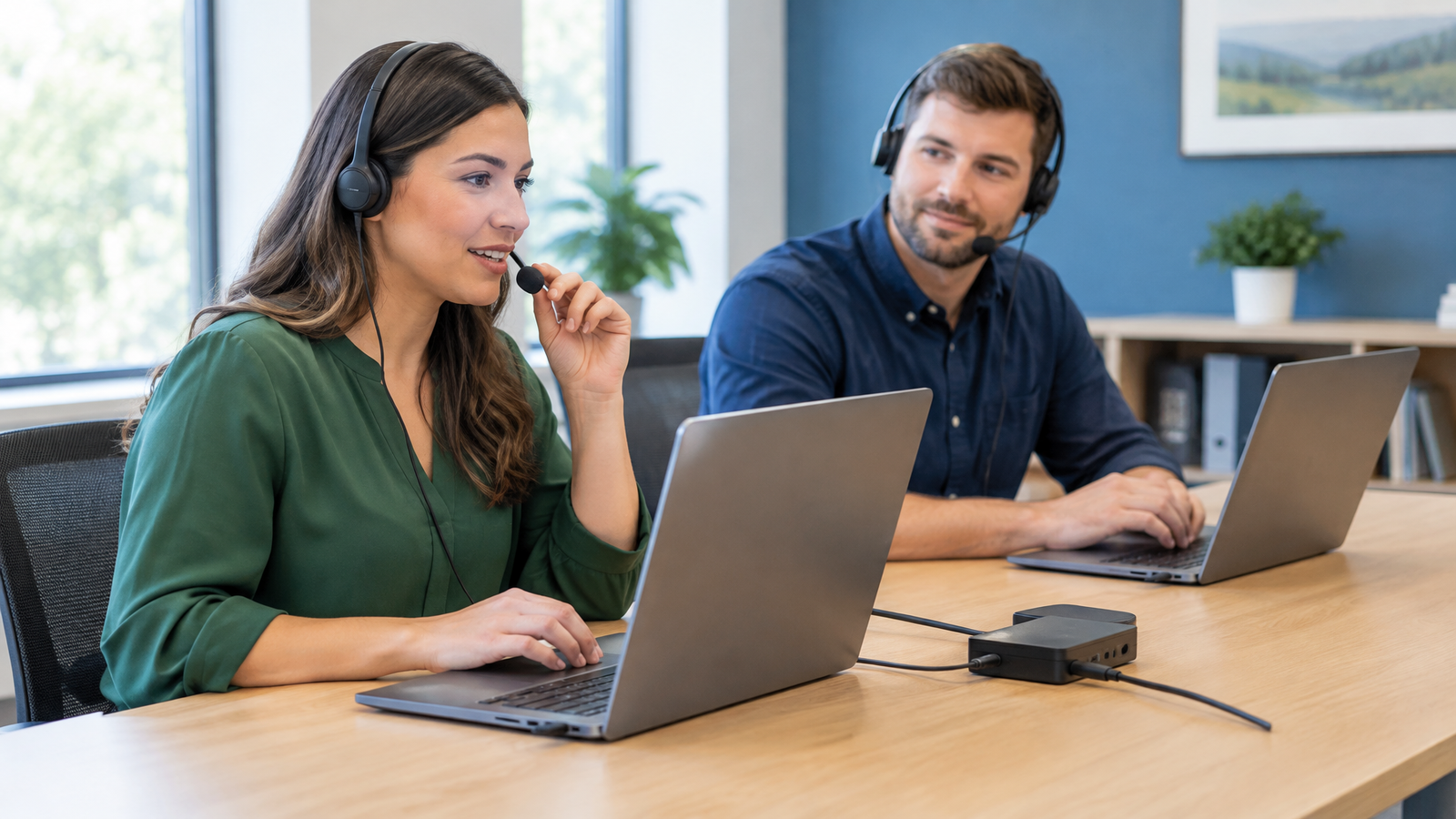
Before buying headsets for everyone, try the intended model on the computers employees use. Test the microphone, earpieces, connector, comfort, and controls during an ordinary conversation. Include docking stations and adapters in the trial instead of testing a different connection from the deployed setup.
Have a colleague listen while you speak at your normal volume. Then reverse roles. Ask whether speech is clear, whether nearby conversations are distracting, and whether you can hear without raising the volume excessively. Try the same task in reception, not only in a quiet meeting room.
For silence in one direction, work through the physical mute switch, the website's mute control, microphone permission, and selected input. For missing incoming audio, inspect the selected speaker or headset output. Repeat the call after each change to identify which adjustment resolves the problem.
Budget from the equipment trial rather than assuming every employee needs identical accessories. Keep spare equipment available for the roles that cannot stop answering calls.
For an illustrative equipment budget, suppose 12 employees need headsets priced at $40 each and you add 2 identical spares: 12 + 2 = 14 headsets, and 14 × $40 = $560 before tax. This example covers headsets only, not calling subscriptions or installation.
Test browser calling with everyday customer tasks
Place a first call to a colleague's telephone number using the service's dialing instructions. Ask them to report the displayed caller identity and listen for interrupted speech. Then have them call your business number back. Outbound success alone does not establish that incoming routing reaches the right employee.
Use this short team rehearsal:
- Answer a call while normal business applications are open.
- Put the caller on hold and return to the conversation.
- Transfer to the intended coworker, then repeat when that coworker is unavailable.
- Try a telephone menu that requires keypad input.
- Test incoming-call behavior after switching tabs, locking the computer, and returning from sleep.
Record results by workstation and network. Give support the call time, affected direction, device, and symptom instead of only reporting bad audio. Repeat the affected task after making a change.
Assign responsibility for missed calls, lunch coverage, and the end of the workday. For employees leaving their laptops behind, the mobile business phone guide provides related reading for planning that separate workflow.
Set number, cost, and emergency expectations
Before choosing free browser calling, identify the allowance, supported destinations, account requirements, and whether incoming calls are included. Separate free access to a webpage from the cost of telephone service. Request subscription charges, number charges, usage charges, equipment, and optional features together.
For an existing business number, put number portability and the transfer schedule into the service discussion before changing your published contact details. Ask how calls will be handled during the transition.
Include emergency calling in staff instructions: which service supports it, how location is maintained, and what alternative employees should use during an outage. Arrange any live emergency-call test through the local emergency communications center's non-emergency number and follow its instructions.
Use Browser-Based Softphone for hosted business calling
Carolina Digital Phone provides Browser-Based Softphone for hosted-platform clients, accessed through a unique browser URL and login or a portal pop-up, without additional end-user software installation or configuration. This gives the laptop pilot a specific starting point: launch the client and practice the calls employees actually handle.
Carolina Digital Phone also combines phone, fax, texting, and a mobile app in its All-in-One Solution. Consider that broader scope when the project extends beyond computer calling.
Bring your workstation inventory and first-call results to a discussion of the Browser-Based Softphone.
Frequently Asked Questions
Does browser calling require a camera?
Audio-only calling needs microphone access, not a camera. Chrome manages camera and microphone permissions separately.
Can IT control microphone access on school computers?
Yes. Administrators can control Chrome microphone settings on managed work or school computers, so employees may need IT to change them.