You can aim to set up in minutes when your business calling account is already active, your login works, and your headset is ready. Start with a single workstation: connect the audio, open the calling client, allow microphone access, and complete a return call. Treat a new phone-service rollout as a separate project.
1. Prepare the account before you set up in minutes
Define the finish line as a working employee calling desk, rather than an entire office migration. Have your assigned calling address, account credentials, business number, computer, internet connection, and headset available. Ask the person managing your phone service to resolve account access before your first customer-facing shift.
Carolina Digital Phone provides a Browser-Based Softphone for hosted-platform clients that opens through a unique browser address and login or a portal pop-up, without additional end-user software installation or configuration (browser softphone overview). That launch method removes an installation task; account readiness still belongs on your preparation list.
Use a short practice session rather than promising a fixed completion time. Record how long your first workstation takes, including troubleshooting, before giving coworkers a setup estimate. A successful login is a milestone, but the completion check is a conversation that works in both directions.
2. Arrange a desk you can use throughout the day
Choose a space where you can hear callers and reach the keyboard without moving the headset cable. Put the items needed during customer conversations within reach: computer, headset, appointment information, and a place for notes. Clear unrelated paperwork from that area before opening customer records.
Before settling into repeated calls, adjust your chair and clear enough space to reach your keyboard comfortably. Try the arrangement during your practice conversation, then move anything that interferes with using the headset or taking notes.
For a shared home office, agree on when the space is available and how others will know you are speaking with a customer. Keep your work notes together so packing away the desk does not scatter appointment details. The goal is a repeatable working position, not a complete room makeover.
3. Set up in minutes with the right microphone permission
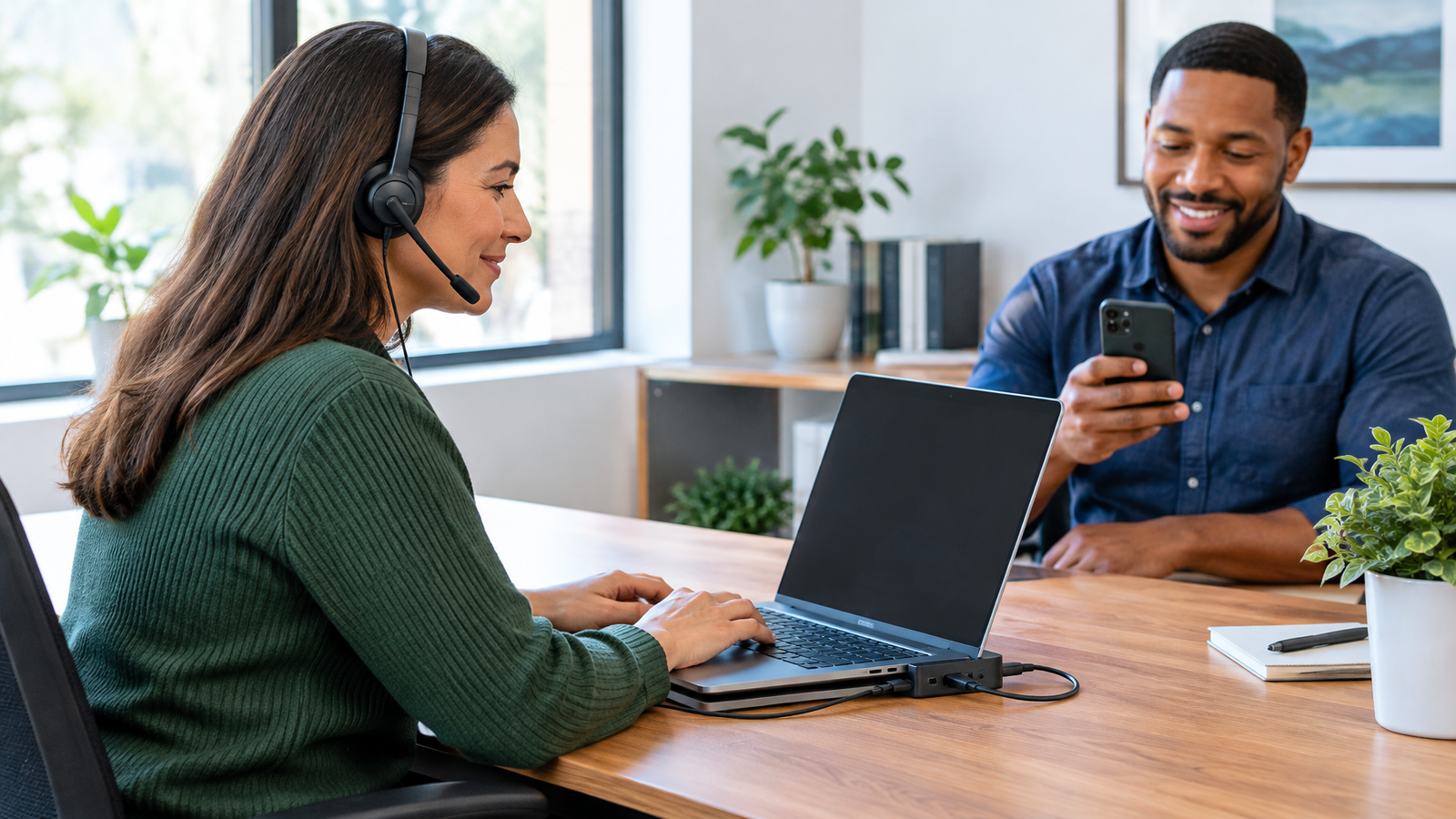
Connect the headset before opening the calling client. Use the browser approved for your service. In Chrome, open the calling site and choose Allow while visiting the site when it requests microphone access. If the microphone was blocked, use Settings > Privacy and security > Site settings > Microphone, select the site, and change its permission to Allow.
In those Microphone settings, select the intended default microphone. If Chrome requests permission through the operating system, follow that prompt and restart Chrome when requested. On managed work or school computers, an administrator may control these permissions.
Keep a brief workstation note with the browser, headset model, and connection used. Include any docking station or adapter in your practice call. This makes the next setup reproducible and gives support a useful starting point if a different employee cannot hear callers.
4. Schedule customer appointments with explicit times
To set up in minutes without creating later scheduling work, decide the appointment length, available hours, and meeting method before creating a booking page. Keep appointment scheduling separate from phone activation. A calendar booking should explain who calls whom and which number or meeting location to use.
For Google Calendar, work on a computer with a personal Google Account or Workspace account. Open Create > Appointment schedule, enter a descriptive title, select Appointment duration, and choose Custom if your required length differs from the available choices. Then set your dates, hours, and time zone under General availability (appointment scheduling instructions).
Use Scheduling window for advance-booking limits and minimum notice. Under Booked appointment settings, use buffer time when staff need space between conversations. Continue with Next, complete the booking-page details, and save. Some scheduling features require an eligible subscription.
Open the resulting booking page as a customer would. Check a real date, the displayed time zone, and the meeting instructions before sharing it. Change the appointment duration itself when the conversation needs more time; reserve buffer time for work between appointments.
5. Plan the workday around calls and follow-up
A desk you can set up in minutes still needs a daily operating plan. Before accepting calls, identify who answers during lunch, who handles appointment changes, and where unfinished requests go. Write down the receiving colleague or destination instead of relying on a general instruction to contact the team.
Put callback work and appointment preparation into your calendar alongside meetings. Keep a short list of unresolved customer requests with an owner and next action. At the end of the shift, hand off open items rather than leaving them only in personal notes.
If your workflow also needs fax, texting, and mobile access, Carolina Digital Phone combines those services with phone service in its All-in-One Solution. Scope those requirements alongside the calling desk, rather than treating every communication channel as another browser setting.
6. Complete a return call before taking customer calls
Call a colleague and ask them to report whether they hear you clearly and what caller identity appears. Have them call your assigned business number back. Then rehearse the tasks your role actually requires, such as reaching the intended coworker or finding the appointment record while speaking.
If they cannot hear you, work through the headset's physical mute switch, the site's mute control, microphone permission, and the selected recording device. Chrome's troubleshooting sequence covers those checks. Change one item at a time and repeat the call.
Record the call time, direction, device, and symptom when reporting a problem. Finish only when incoming and outgoing conversations work and the appointment instructions match the actual calling process.
Bring your account-readiness questions and workstation notes to a discussion through the business calling inquiry form.
Frequently Asked Questions
Does an audio-only calling desk need a camera?
Audio-only calling needs a microphone rather than camera access. Chrome manages camera and microphone permissions separately, so grant the permissions your actual calling task requires.
Why does my new booking page show no appointments today?
Google Calendar applies a default four-hour minimum booking lead time. That can hide same-day availability immediately after setup; adjust Scheduling window to match the notice your team needs.